
Where should user uploads live? Object storage vs. the container disk
The profile photo uploaded today should still be there after the next deploy, and that doesn't happen by itself.
Co-founder, Parslinks · Team, marketing & infrastructure
A beauty clinic in Shiraz runs online booking. Before their visit, patients upload photos of their records and insurance documents. The clinic moved the app from an old server to a container platform, and the first week went perfectly. In the second week, after the first new release, the receptionist reported that documents from the past few days wouldn't open. The files had been on the previous container's disk, the container that was replaced by the new release.
This happens so often that it's one of the first questions on our migration checklist: "Do users upload files? Where are they stored?"
Why a container disk is no place for files
Containers are designed to be disposable. Each deploy creates a fresh container from the image, and the old one is removed along with everything written to its disk. The second problem appears when you run two instances: a file uploaded to instance one doesn't exist on instance two. The user sees their photo one time and not the next, depending on which instance serves the request.
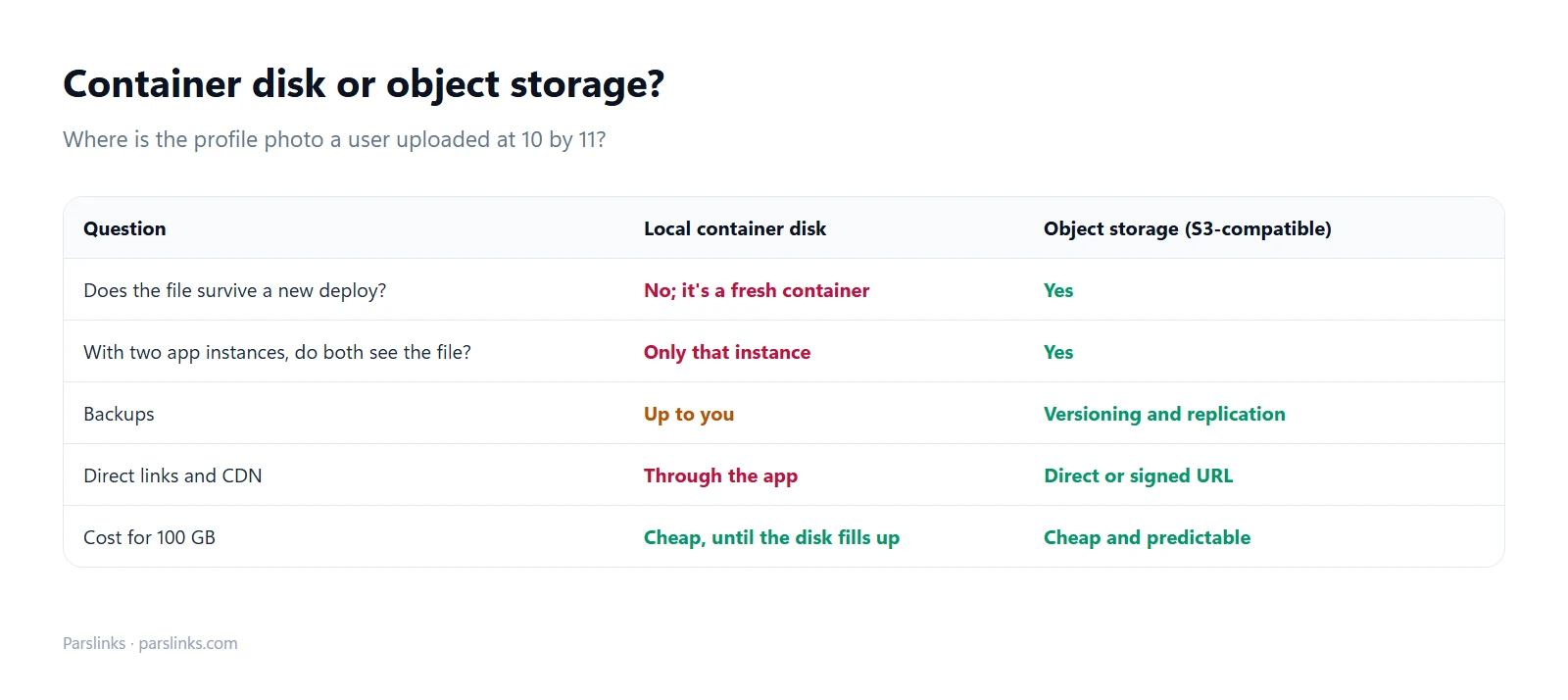
Three options
A persistent volume. A separate disk attached to the container that survives deploys. Simple to start with and no code changes. But it's usually attached to a single instance, so when you want two instances you hit the same problem again.
S3-compatible object storage. Files live in a separate service that every app instance reaches through an API. It has versioning, replication and direct links, and practically no size limit. Domestic providers offer S3-compatible services too, so for users in Iran the files are served from inside the country.
The database. Storing files as binary in the database is acceptable for tiny files (icons, say), but for photos and PDFs it bloats the database and slows backups. We don't recommend it.
Uploading with a signed URL
The best pattern is for the file never to pass through your app server. The server creates a temporary signed URL and the user's browser sends the file straight to object storage. Your server isn't burdened by file sizes, and large uploads don't slow it down.
The browser uploads the file directly with a PUT to that url, then sends the key with the form to your server so it's saved in the database.
Private files
Insurance documents, national ID cards and contracts shouldn't be reachable through a public link. Keep their bucket private, and each time an authorised user needs to see a file, generate a short-lived signed read URL. If the link leaks, it stops working minutes later.
Migrating existing files
If files are currently on the old server's disk:
- Make the code dual-path: new files go to object storage, while old files can still be read from the previous path.
- Move old files with a sync tool. Tools like
rcloneoraws s3 sync(pointed at your provider's endpoint) keep the folder structure. - Update URLs in the database if full file paths were stored.
- Keep both for a week, then remove the old path.
In short
If your app accepts files from users, decide where they're stored before your first deploy on a platform, not after the first "my file is gone" report. For most projects the answer is S3-compatible object storage, with direct browser uploads and signed URLs for private files.
Frequently asked questions
Join the discussion
No comments yet. Be the first to share your thoughts.
Related posts
- Guides
Moving from cPanel to Git-based deploys: a step-by-step guide for small teams
FTP uploads and editing files in cPanel's File Manager work for a small site, until two people change the same file at once. This guide walks through moving a PHP or Node.js site from cPanel to Git-based deploys, including the database, uploads, email and DNS.
- Deploy
Deploying Next.js to production: what SSG, ISR and SSR each need from your infrastructure
Each page's rendering mode decides what your server has to do. This post covers what SSG, ISR, SSR and PPR need from your infrastructure, how standalone output works, and what breaks once the app runs on more than one instance.
- Platform
PaaS or a VPS? The real DevOps hours behind a small team's server
The VPS price is on the invoice. The hours spent on patches, SSL renewals, deploy scripts and midnight restarts are not. This post counts those hours, compares them with a platform, and is honest about when a VPS is still the better call.